Write Markdown in Confluence with Mermaid & LaTeX
- Engineering teams who write docs in Markdown but live in Confluence
- Research/academic teams who need LaTeX math equations inside wiki pages
- Anyone tired of Markdown editors that drop Mermaid diagrams or render math as plain text
- How to write Markdown in Confluence with a live split preview
- Embedding Mermaid flowcharts and ZenUML sequence diagrams inside Markdown
- Rendering KaTeX and full LaTeX (MathJax) math — inline, block, and fenced
- GitHub-flavored tables, 190+ code languages, and dark mode
The scenario every technical team hits: your engineering docs live in Markdown — READMEs, API references, design docs — and they contain diagrams (Mermaid), equations (LaTeX), and code samples. You paste that Markdown into Confluence, and it falls apart. The Mermaid code blocks render as plain text. The LaTeX equations show as raw $...$ syntax. The code blocks lose their syntax highlighting. Confluence's native editor is WYSIWYG, not Markdown, and the import tools treat Markdown as a one-time conversion rather than something you edit live.
Enhanced Markdown for Confluence solves this with a Markdown editor that renders everything inline — Mermaid diagrams, KaTeX and LaTeX math, syntax-highlighted code, and GitHub-flavored tables — with a live split preview. It runs on the Quikdown engine, so all rendering libraries are bundled locally (no external CDN dependencies, which matters for "Runs on Atlassian" compliance). This guide walks through writing Markdown in Confluence with diagrams, math, and code all rendering live.
Why writing Markdown in Confluence is harder than it sounds
Confluence is a WYSIWYG editor — it stores pages in its own storage format, not Markdown. The native "Markdown import" is a one-way conversion: it transforms your Markdown into Confluence storage format once, and after that you edit the result in the visual editor. The Markdown source is gone.
This breaks down for teams whose content is Markdown:
- Mermaid diagrams die at import. When you paste Markdown containing
```mermaidfences, Confluence's importer treats them as plain code blocks. No diagram renders. (This is a known community frustration.) - LaTeX math becomes raw text.
$E = mc^2$stays as the literal characters, not the rendered equation. - No live preview. You import blind, then discover rendering problems after publish.
A Markdown macro — one that you edit and save as Markdown, with the rendered output generated on the fly — fixes all three. The Markdown source stays editable; diagrams, math, and code render live.
Step-by-step: write Markdown with Mermaid, LaTeX, and code
1. Install Enhanced Markdown for Confluence
Install Enhanced Markdown for Confluence from the Marketplace. It's free for up to 10 users.
2. Insert the Markdown macro
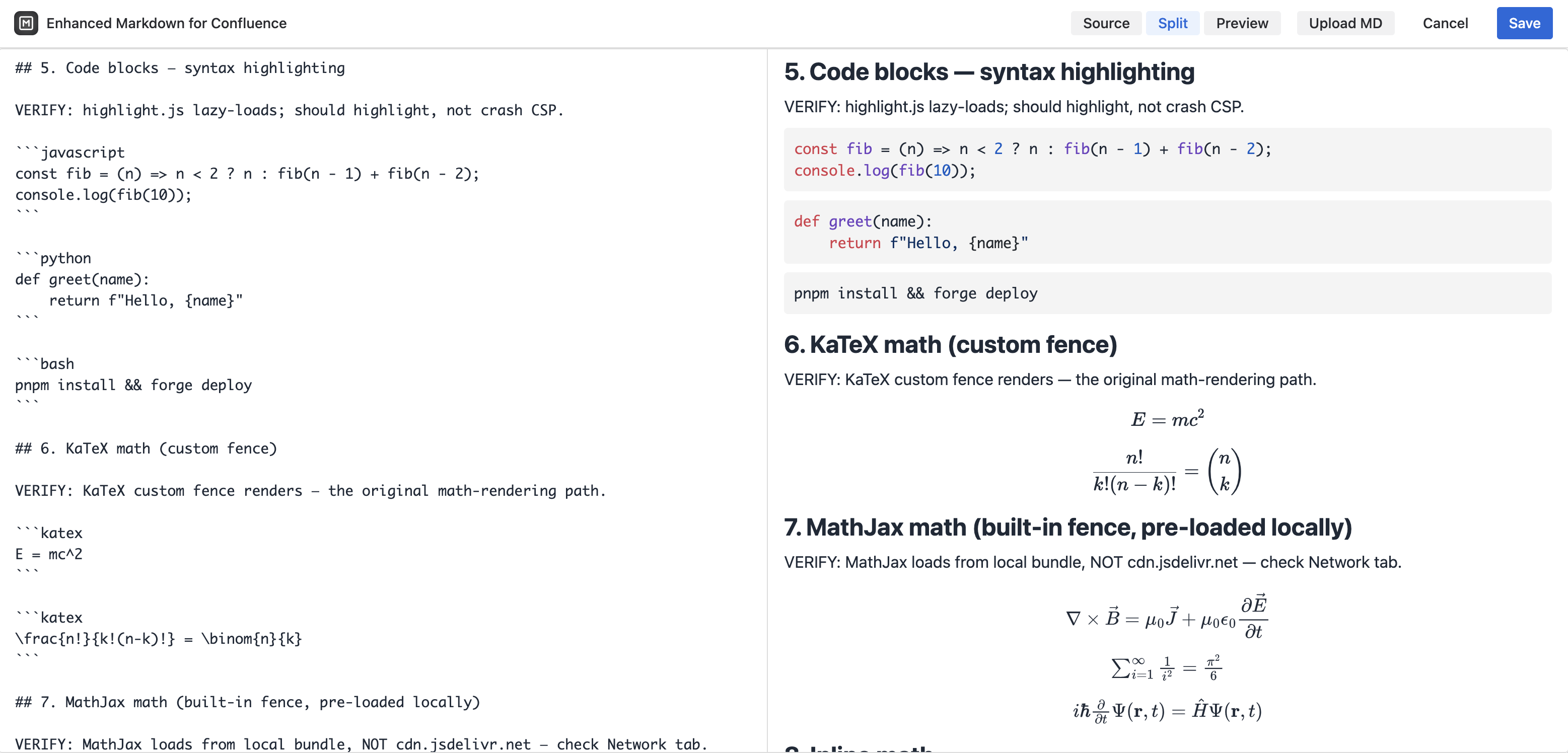
Edit any Confluence page. Type /enhanced markdown and select the macro. The editor opens in Split mode by default — Markdown source on the left, live rendered preview on the right.
3. Write your Markdown with diagrams, math, and code
The editor renders the full Markdown feature set live. Here's what each looks like as you type:
Code blocks with syntax highlighting
Fenced code blocks highlight automatically across 190+ languages via highlight.js. GitHub light and dark themes match Confluence's color scheme:
```python
def fibonacci(n):
    a, b = 0, 1
    for _ in range(n):
        a, b = b, a + b
    return a
```
Mermaid diagrams
The full Mermaid v12 install is bundled — all 30 diagram types render inside your Markdown. Write a ```mermaid fence and the diagram appears in the live preview immediately:
```mermaid
flowchart LR
    A[Write Markdown] --> B{Preview looks right?}
    B -->|yes| C[Publish]
    B -->|no| A
```
ZenUML sequence diagrams are also supported via ```zenuml fences, using the modern Actor->Message syntax.
Math — KaTeX and LaTeX
Three ways to render math, all client-side with no external service:
KaTeX (fast, CSS-based) — use a ```katex fence:
```katex
\frac{d}{dx}\left(\int_{0}^{x} f(u)\,du\right)=f(x)
```
Full LaTeX / MathJax — for heavier notation including \begin{align} and AMS packages, use ```math, ```tex, or ```latex fences:
```math
\begin{align}
\nabla \times \vec{B} &= \mu_0 \vec{J} \\
\nabla \cdot \vec{E} &= \frac{\rho}{\varepsilon_0}
\end{align}
```
Inline and display math — $E = mc^2$ renders inline, and $$...$$ renders as a centered display equation. Both typeset in the live preview as you type.
MathJax is bundled locally, so equations render without any CDN egress — important for security review and offline instances.
GitHub-flavored tables
Standard pipe tables with column alignment:
| Feature       | Status | Notes              |
| ------------- | :----: | ------------------ |
| Split editor  |   ✅   | Default mode       |
| Scroll sync   |   ✅   | Bidirectional      |
| Mermaid       |   ✅   | Full v12 + ZenUML  |
| LaTeX         |   ✅   | KaTeX + MathJax    |
4. Switch between Source, Split, and Preview modes
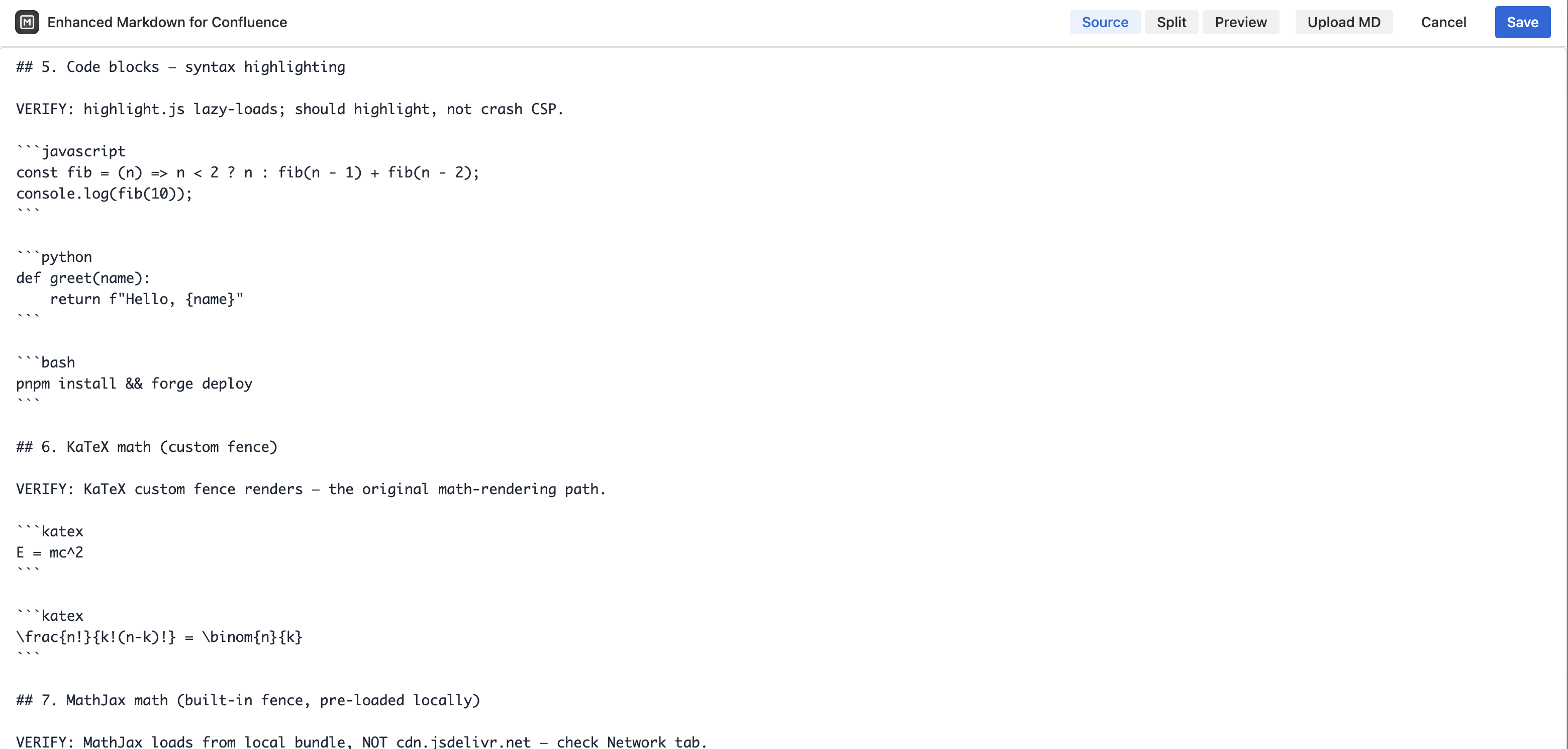
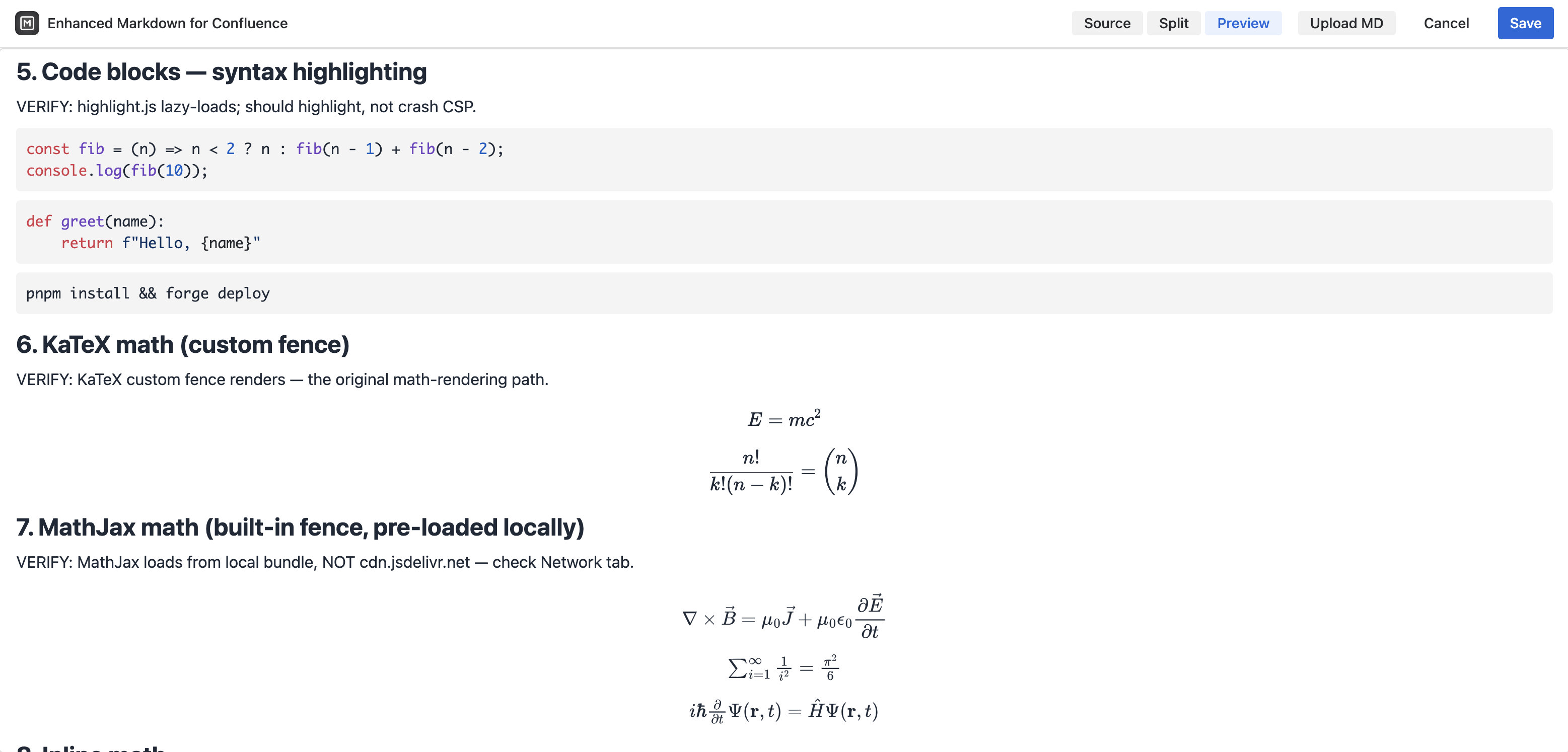
The header toggle switches between three modes:
- Source — full-width Markdown editing (for writing speed)
- Split — source + live preview with bidirectional scroll sync (for catching rendering issues)
- Preview — full-width rendered output (for a final read before saving)
Your mode choice is saved per macro — reopen the editor and the same mode comes back. Scroll sync in Split mode is bidirectional: scroll the source and the preview follows proportionally; scroll the preview and the source follows.
5. Save and publish
Click Save. The Markdown renders on the Confluence page. The output follows Confluence's light/dark theme automatically — code highlighting, diagrams, and math all switch palettes with the host page. Your Markdown source is preserved across edits (stored compressed), so reopening the macro brings back the exact source you wrote.
Upload an existing Markdown file
If you have Markdown docs living outside Confluence — in a GitHub repo, a notes app, or exported from another system — click Upload MD in the header to import a .md or .markdown file directly into the editor. This is the fastest way to migrate an existing Markdown document into Confluence without losing diagrams or equations.
Smart links inside the macro
Links inside the Markdown macro behave the way you'd expect in Confluence:
- In-page anchors (
#section) scroll within the macro instead of navigating away - Path-rooted links (
/wiki/download/...) resolve correctly through Confluence - External links open in a host-controlled tab
Since v1.4.1, every heading in the macro automatically gets an anchor derived from its text, so long documents can carry their own table of contents:
## Contents

- [Installing](#installing)
- [Configuring](#configuring)
- [Troubleshooting](#troubleshooting)
Anchors are lowercase, with spaces replaced by hyphens. One wrinkle: punctuation is removed rather than converted, so ## API v2.0 (Beta) is anchored as #api-v20-beta. The navigation guide covers the full rules and troubleshooting.
When to use Markdown vs. Confluence's WYSIWYG editor
| You want to… | Use |
|---|---|
| Write developer docs that live in Markdown anyway | Enhanced Markdown |
| Render Mermaid diagrams, LaTeX math, and code in one block | Enhanced Markdown |
| Migrate a Markdown repo (README, docs site) into Confluence | Enhanced Markdown (Upload MD) |
| Build a page with mixed Confluence macros (Jira, statuses, task lists) | Native WYSIWYG |
| Drag-and-drop layout with multiple columns | Native WYSIWYG |
Many teams use both: Enhanced Markdown blocks for the technical-content portions of a page (code, diagrams, equations), and native Confluence macros around them for project management widgets.
FAQ
Does Confluence support Markdown natively?
No. Confluence's native editor is WYSIWYG (rich text), and pages are stored in Confluence's storage format, not Markdown. Confluence has a Markdown import that converts Markdown to storage format once, but you can't edit Markdown live and see it render. To write and edit Markdown with live preview, you need a Marketplace app like Enhanced Markdown for Confluence.
Can I render Mermaid diagrams inside Markdown in Confluence?
Yes. Enhanced Markdown for Confluence bundles the full Mermaid v12 install (all 30 diagram types) and renders ```mermaid fences directly inside the Markdown editor with live preview. This is the key gap with Confluence's native Markdown import, which treats Mermaid fences as plain code.
Does Enhanced Markdown support LaTeX math?
Yes, two ways. KaTeX provides fast CSS-based rendering for everyday equations (via ```katex fences or inline $...$). Full LaTeX with AMS packages and \begin{align} environments goes through a locally bundled MathJax (via ```math, ```tex, or ```latex fences). Inline $...$ and display $$...$$ math both render in the live preview.
How many code languages does the syntax highlighting support?
190+ languages via highlight.js, with GitHub light and dark themes that match Confluence's color scheme. Languages include Python, JavaScript, TypeScript, Go, Rust, Java, SQL, YAML, JSON, Bash, and many more.
Does the editor work offline / without external CDNs?
Yes. All rendering libraries — Mermaid, KaTeX, MathJax, and highlight.js — are bundled locally with the app. The macro makes no external CDN calls, which is important for security review and for Atlassian's "Runs on Atlassian" compliance.
Is Enhanced Markdown for Confluence free?
Enhanced Markdown for Confluence is free for up to 10 users. Beyond 10 users, standard Atlassian Marketplace licensing applies.
Related guides
- Paste Mermaid diagrams into Confluence — the paste workflow for repo Markdown, now that Mermaid 12 adds UML use case diagrams
- Import Markdown into Confluence — paste, GitHub and
.mdfile routes compared - Mermaid 12 in Confluence & Jira — what the version upgrade adds, including
usecase-beta - Does Confluence support Mermaid? — why the native editor cannot render diagrams
Try Mermaid Plus Diagrams & AI Agent for Confluence
All 30 Mermaid diagram types plus a Rovo AI agent, with live preview and one-click templates — free for up to 10 users.
Get it on the Atlassian Marketplace