Usage
How to open the editor
Click the "More actions" button and choose the menu item "Source Editor Pro for Confluence".
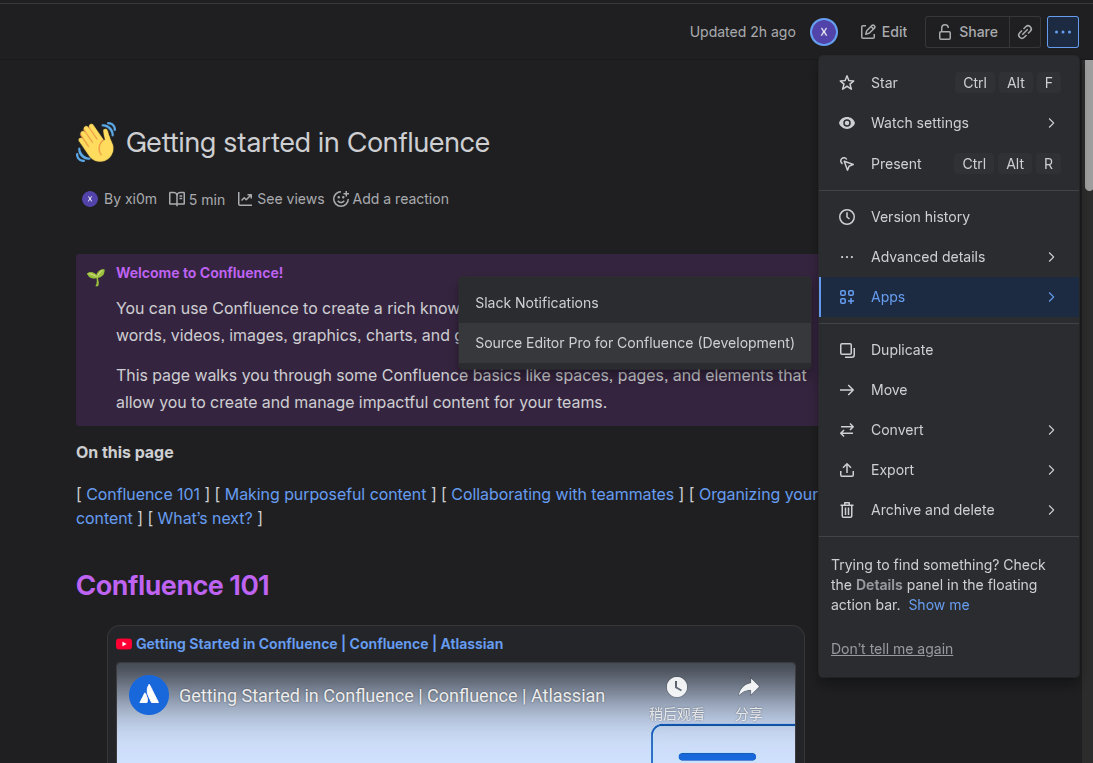
Then you can edit the raw storage format (XML) of the Confluence page directly.
⚠️ Editing storage format is powerful but dangerous. Please make sure you know what you are doing, or test on a sample page first.
Top toolbar
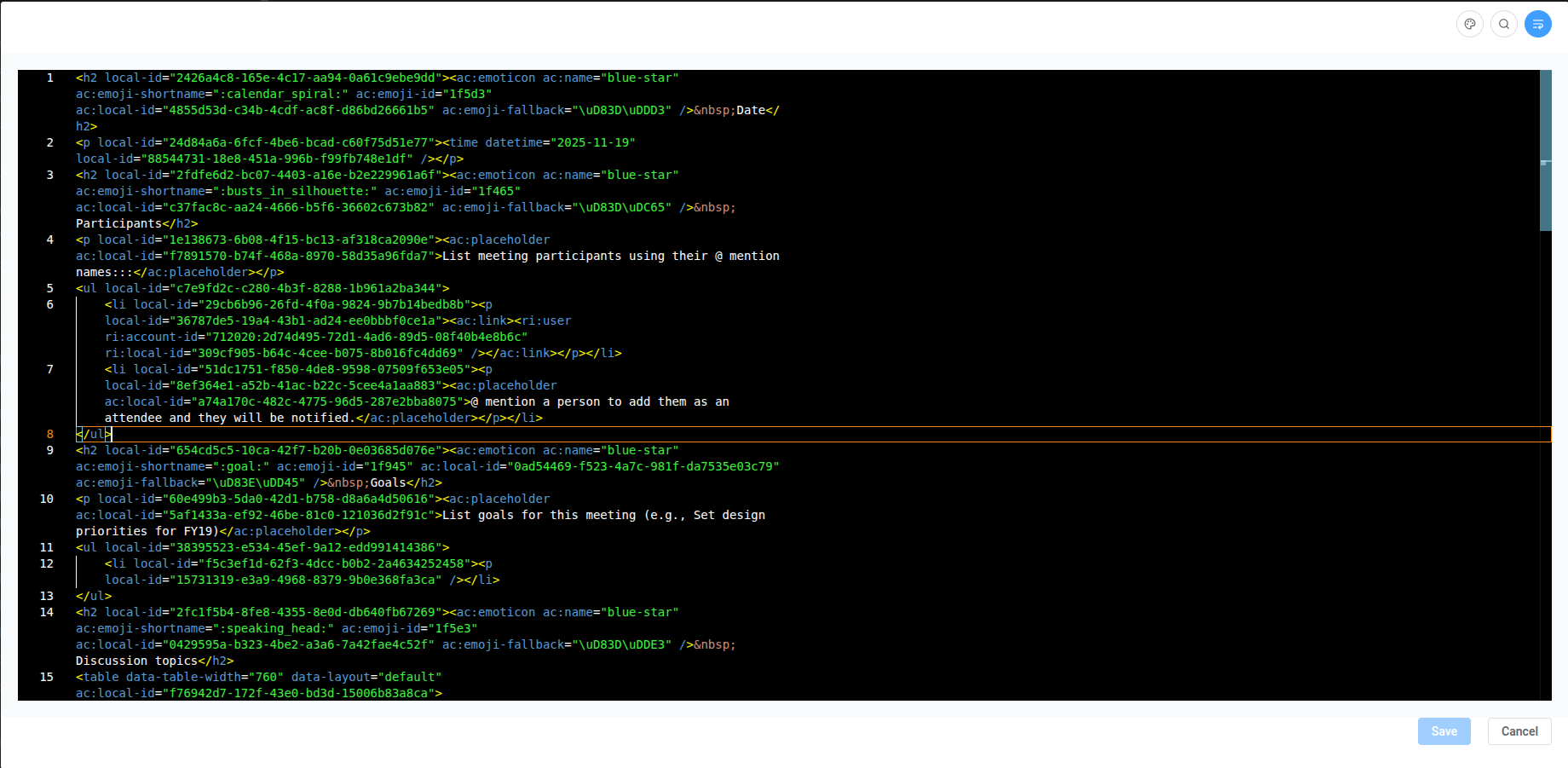
At the top‑right of the editor you will see a small toolbar:
-
Theme
- Click the 🎨 palette icon to switch between editor themes.
- Available themes: Light, Dark, and High Contrast.
- Your preference is saved and will be remembered next time.
-
Find
- Click the 🔍 icon to open the Find panel, similar to using
Ctrl+Fin the browser. - You can also simply use the
Ctrl+F/Cmd+Fshortcut inside the editor. - In Diff View, find will search in the modified (right) side.
- Click the 🔍 icon to open the Find panel, similar to using
-
Toggle word wrap
- Click the text‑wrap icon to turn automatic word wrapping on or off.
- When enabled, long lines will wrap to reduce horizontal scrolling; when disabled, long lines stay on a single row and you may need to scroll horizontally.
- This button is only visible in normal edit mode. In Diff View, lines are always shown without wrapping to make differences easier to compare.
Diff View
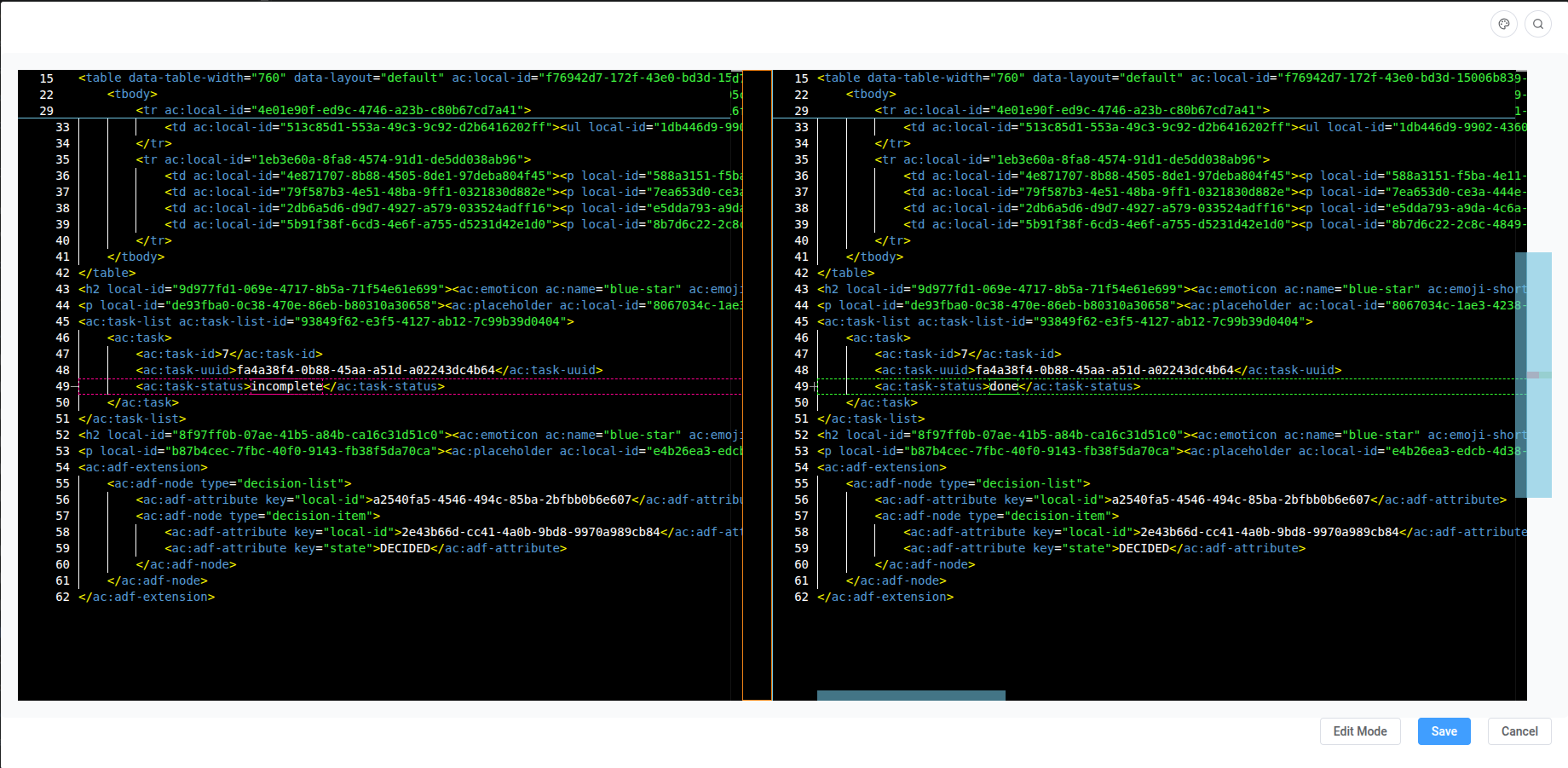
When you change the XML, a "Diff View" button appears at the bottom‑right of the window.
- Click Diff View to open a side‑by‑side comparison:
- Left side: original content when the page was loaded.
- Right side: your current changes.
- You can continue editing only on the right side.
- Click Edit Mode to go back to the normal single‑editor view.
- The Find button still works in Diff View and searches on the right (modified) panel.
This helps you review what will actually be saved back to Confluence.
Format document
If you think the document is messy and want it to look clearer, you can use the "Format Document" function in the right‑click menu of the editor.
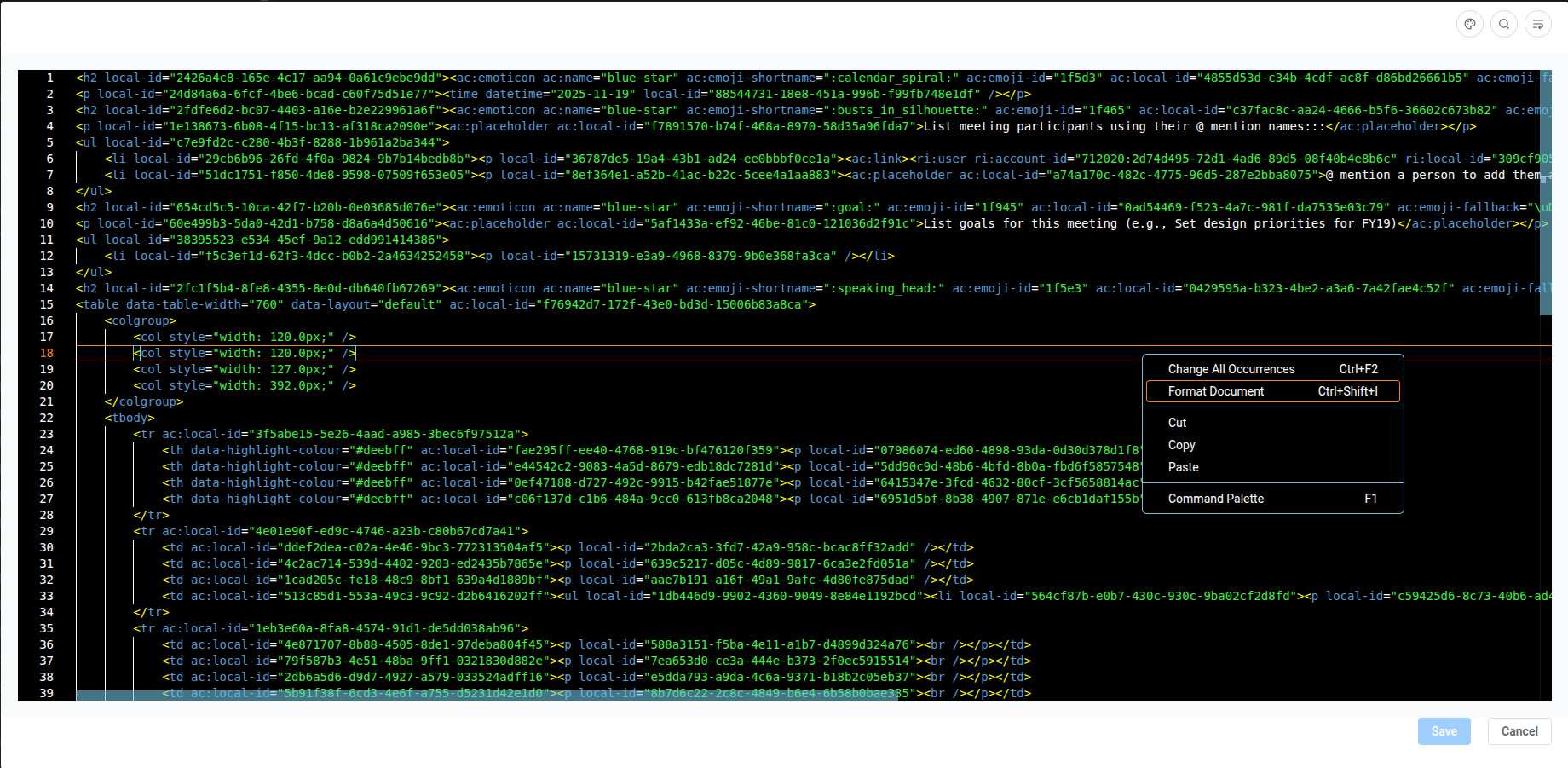
The editor will automatically re‑indent and tidy up the XML structure to make it easier to read. If the XML structure is invalid, formatting may fail. In that case, fix the errors first and then try formatting again.
Save & Cancel
At the bottom‑right of the editor:
-
Save
- After a successful save, the Confluence page is reloaded and the editor is closed.
- The button is disabled when:
- There are no changes,
- Or the editor is still loading,
- Or a save operation is already in progress,
- Or loading the source failed.
-
Cancel
- Closes the editor without saving any changes.
Other functions
Use F1, Ctrl+P (Windows / Linux) or Cmd+P (macOS) to open the command palette of the editor and see all available Monaco commands.
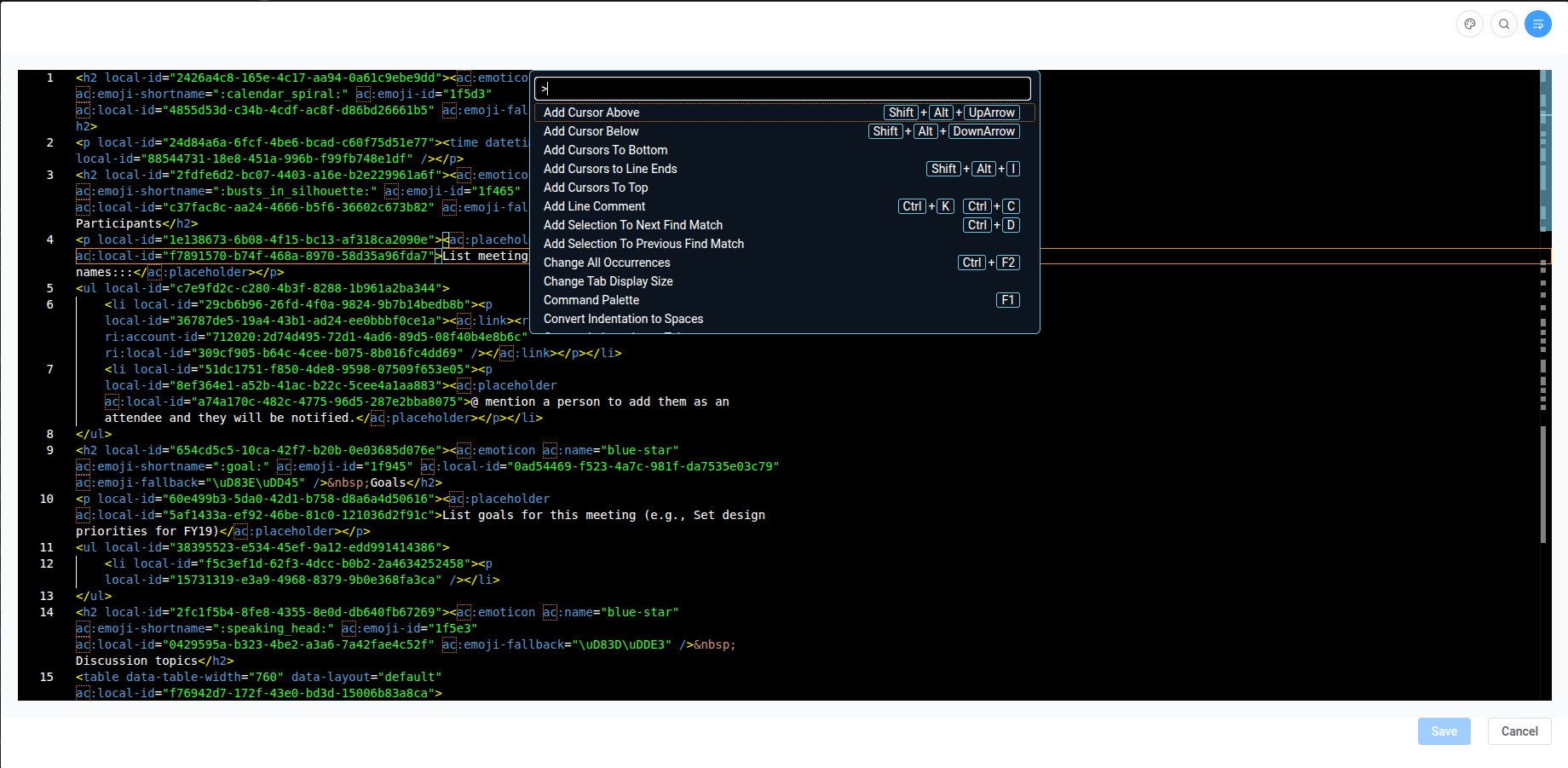
Here you can trigger advanced actions such as:
- More search / replace options.
- Go to line / symbol.
- Toggle minimap, render whitespace, etc.
Most Monaco features work normally inside this Source Editor.
Related Blog Posts
- Confluence source editor comparison (Free vs Pro)
- Advanced code blocks in Confluence
- Best Confluence apps for developers