Modern Confluence Pages: Hero Sections & QR Codes
- Confluence admins and space owners who want their intranet, portal, or knowledge base to look professional
- Marketing and product teams building landing pages, announcements, and product updates in Confluence
- Anyone who has ever thought "I know what I want this page to look like — I just can't make Confluence do it"
- How to make a Confluence page read like Medium (drop caps, clean typography, bilingual mode)
- How to add a proper hero section with CTAs — something the native editor doesn't have
- How to style tables without fighting the editor
- How to add QR codes, collect survey responses, and define glossary terms inline — all without external tools
Take a look at your most-visited Confluence page right now. Does it look like it belongs on the modern web — or does it look like internal documentation from 2015?
If your answer is the latter, you're not alone. Teams across thousands of Confluence sites tell us the same story: "I know exactly what I want my page to look like. I just can't make Confluence do it."
In this guide, we'll show you six concrete ways to level up your Confluence pages — from Medium-style reading layouts to interactive surveys — all without leaving your editor.
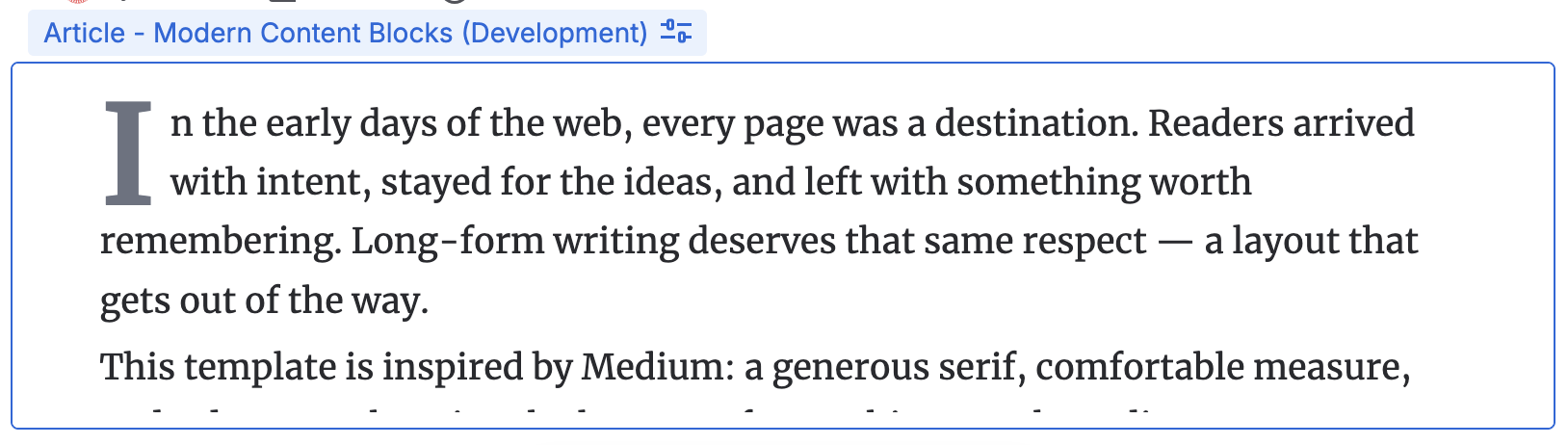
1. How to Make a Confluence Page Read Like Medium
You've seen Medium's clean, distraction-free article layout. Drop caps, beautiful typography, a reading experience that makes people actually want to read.
The problem: Confluence's native editor gives you headings and paragraphs. That's fine for documentation, but not for long-form content like announcements, product updates, or knowledge base deep-dives.
The fix: The Article macro in Content Formatting Macros & Page Builder for Confluence gives you a full reading template system with 6 presets — Medium, Quora, Substack, NYT, GitHub, and Minimal.
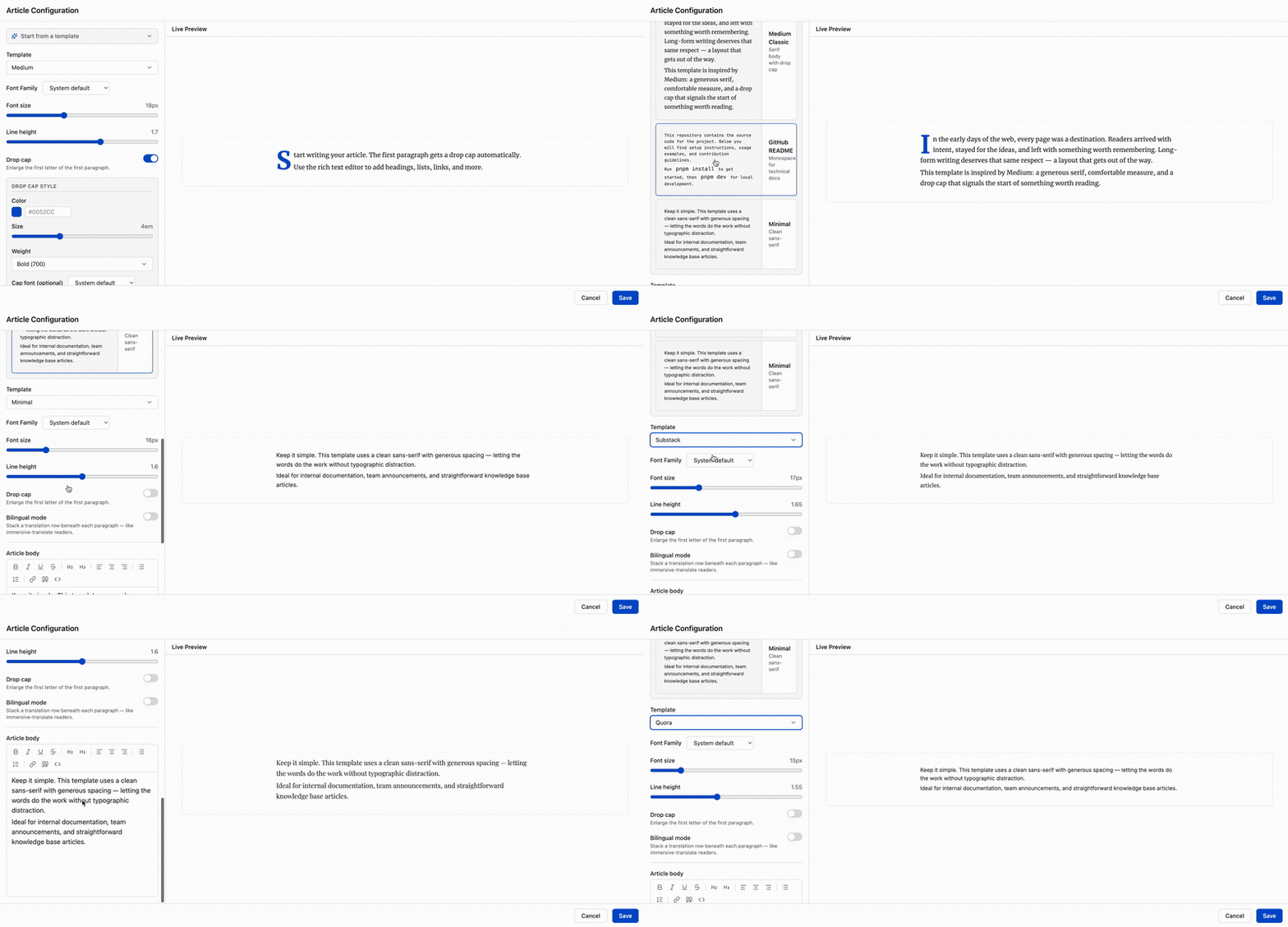
Drop the macro on any page, pick your template, and paste your content. You get:
- Clean typography with 15 bundled fonts (Merriweather, Inter, PT Serif, Playfair Display, etc.)
- Optional drop cap on the first paragraph
- Bilingual mode — stack a translation beneath each paragraph for multilingual teams
No CSS. No custom styling. Just select a template and write.
2. How to Add a Hero Section That Actually Looks Good
Every modern website starts with a hero — a full-width header with a title, subtitle, and call-to-action buttons. It's the first thing visitors see, and it sets the tone for the entire page.
The problem: Confluence's native editor doesn't have a hero block. Teams either paste an image at the top or skip it entirely. Existing formatting apps treat hero sections as an afterthought — most don't have one at all.
The fix: The Hero Section macro gives you a full hero builder with:
- Title, subtitle, and up to two CTA buttons
- Background color, gradient, or image (with overlay controls)
- Min height from 150px to 600px
- Left, center, or right alignment
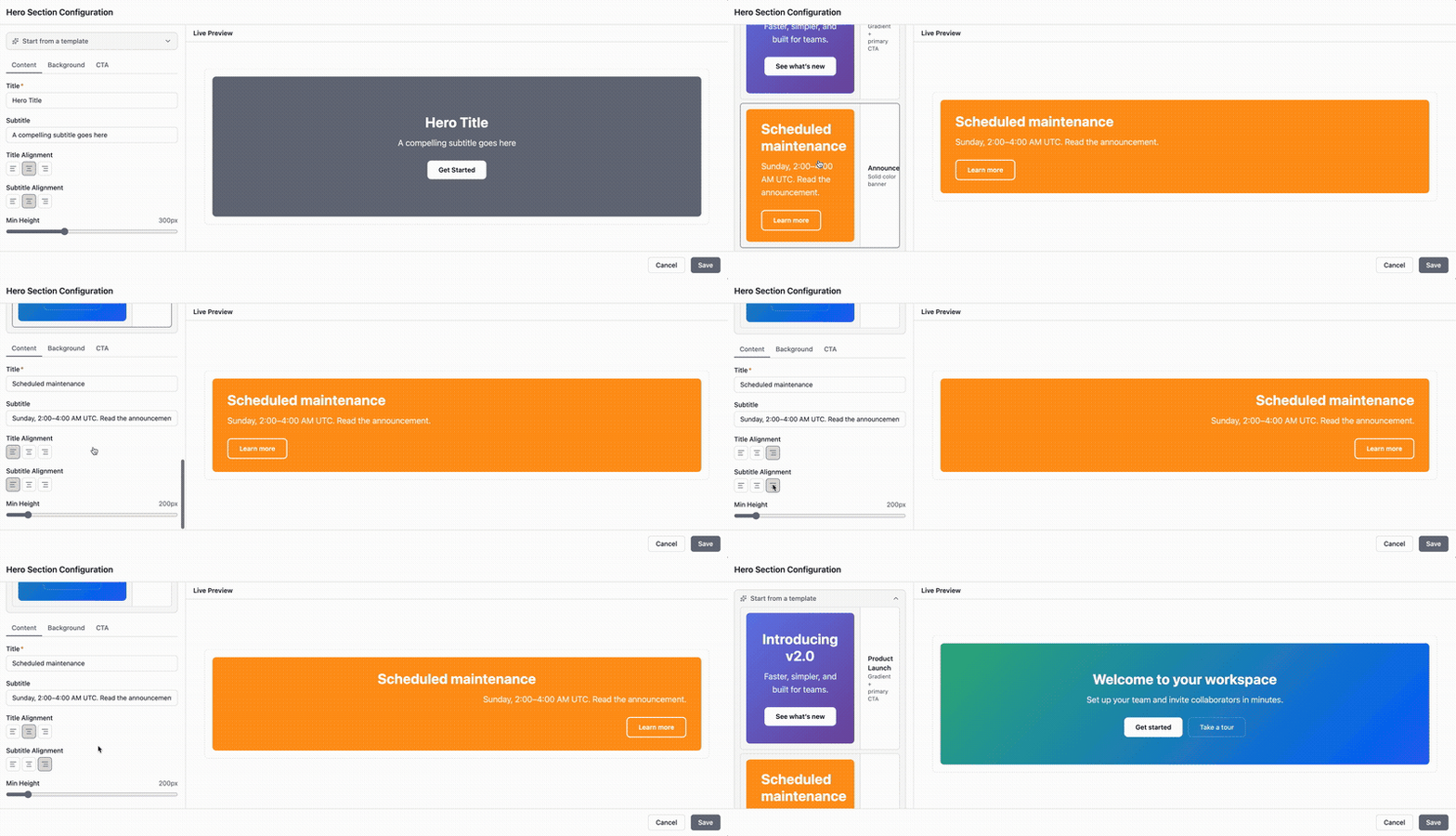
Set it once, and every visitor sees a polished landing page header — no design skills required.
3. How to Add a Styled Table Without Wrestling the Editor
Confluence's native table is functional but basic. You can add rows and columns, but styling requires manual work, and the result rarely looks professional.
The problem: Tables in Confluence default to plain lines and white backgrounds. Adding zebra striping, header colors, or modern styles requires workarounds or external tools.
The fix: The Table macro has 4 built-in style presets — Striped, Bordered, Minimal, and Modern. Drop it in, pick your style, and your data looks presentation-ready immediately.
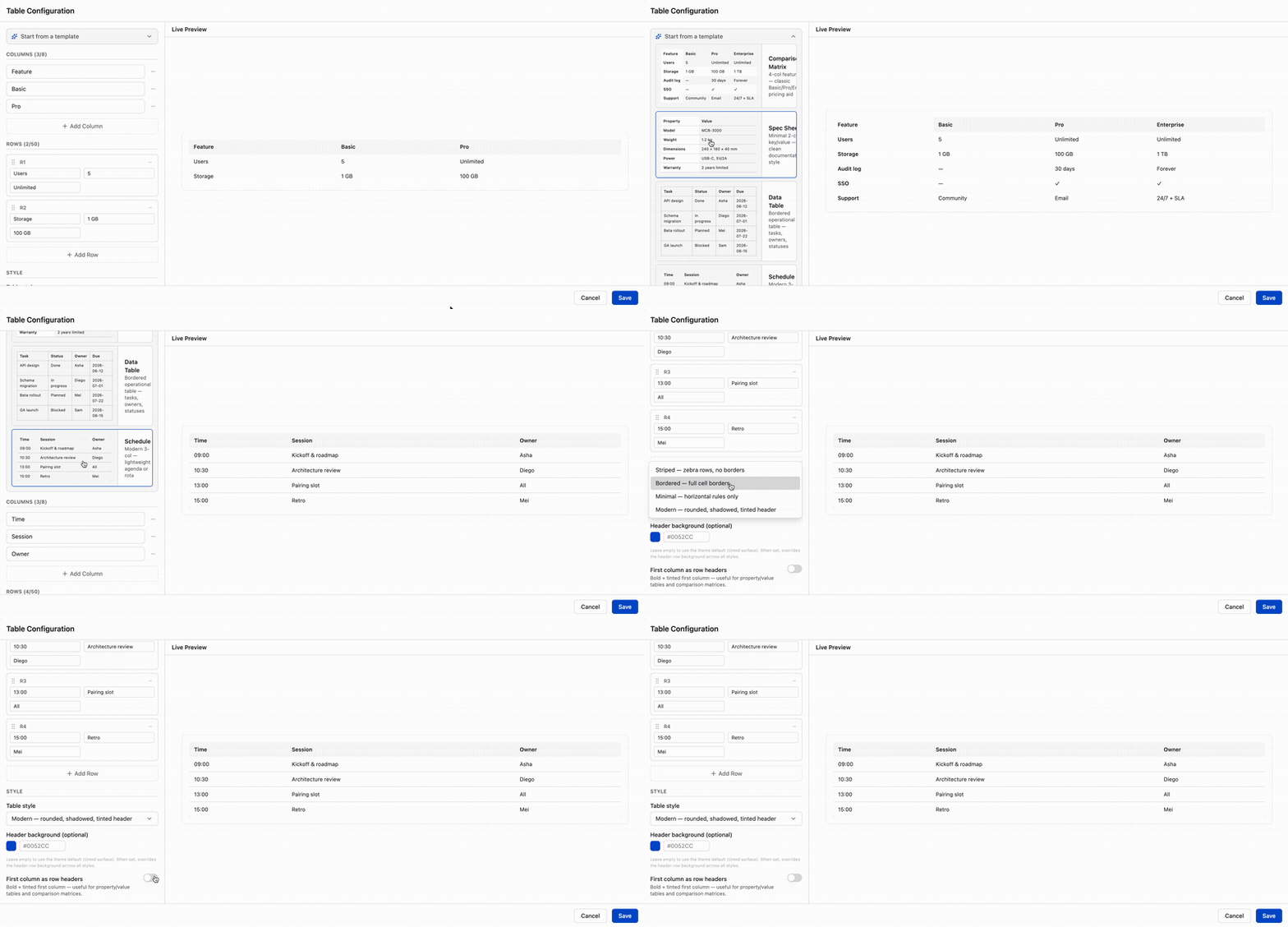
Key features:
- Up to 8 columns and 50 rows
- Configurable header background color
- Zebra striping for dense data
- First-column emphasis option for property/value tables
- 4 starter templates (Comparison Matrix, Spec Sheet, Data Table, Schedule)
4. How to Add a QR Code — Right on the Page, No External Tools
Teams frequently ask: "Can I put a QR code on my Confluence page?" The answer used to be: generate one externally, download the image, upload it as an attachment.
The problem: External QR generators require leaving Confluence. Uploaded images go out of date when you need to change the URL.
The fix: The QR Code macro generates scannable QR codes entirely inside Confluence — no external tools, no image uploads, no stale links.

It supports 7 content types:
- URL, Text, Email, Phone, SMS, WiFi credentials, vCard contacts
- Optional logo overlay in the center
- Adjustable size (128–512px), colors, and error correction
- Built-in download button
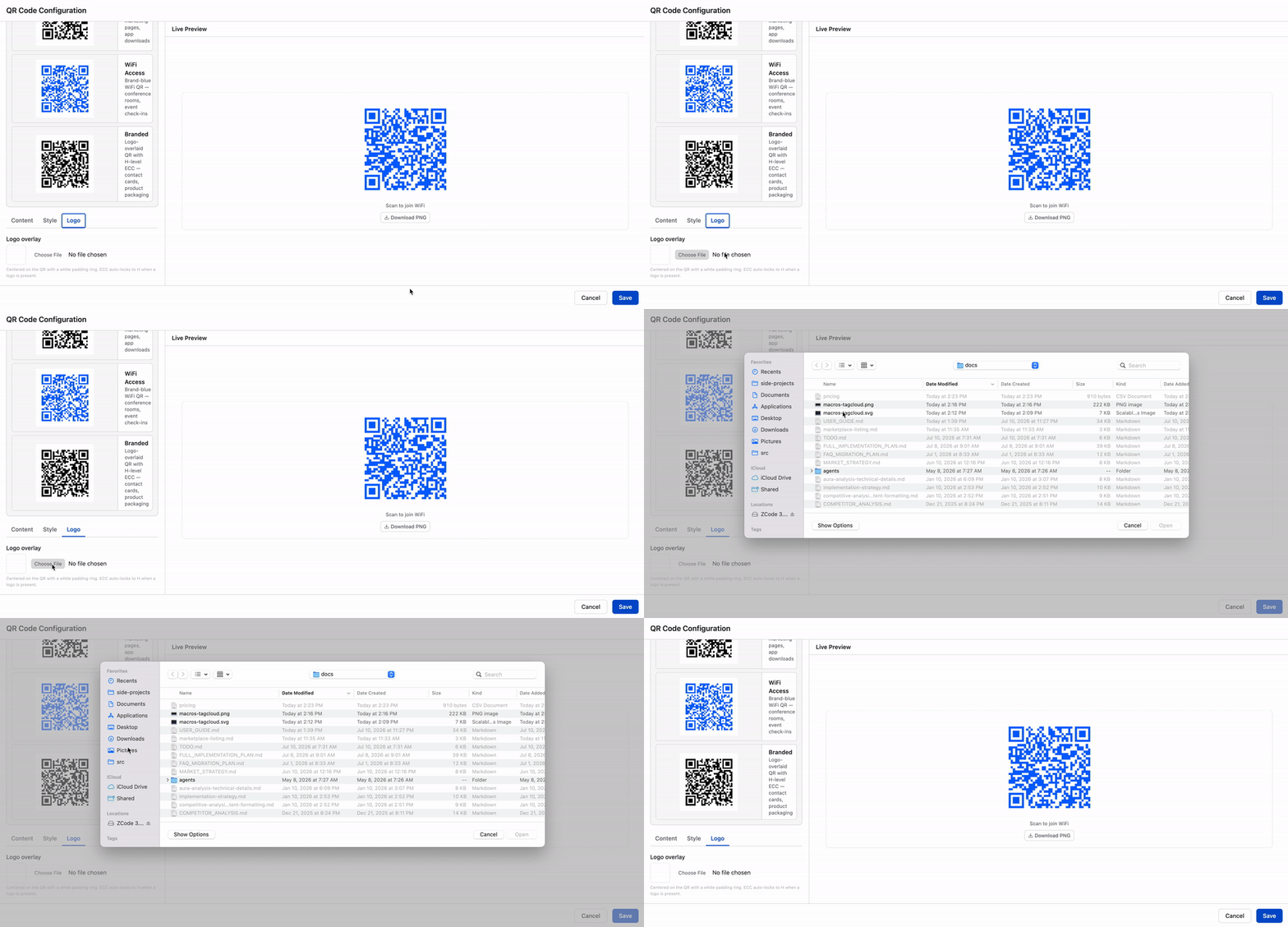
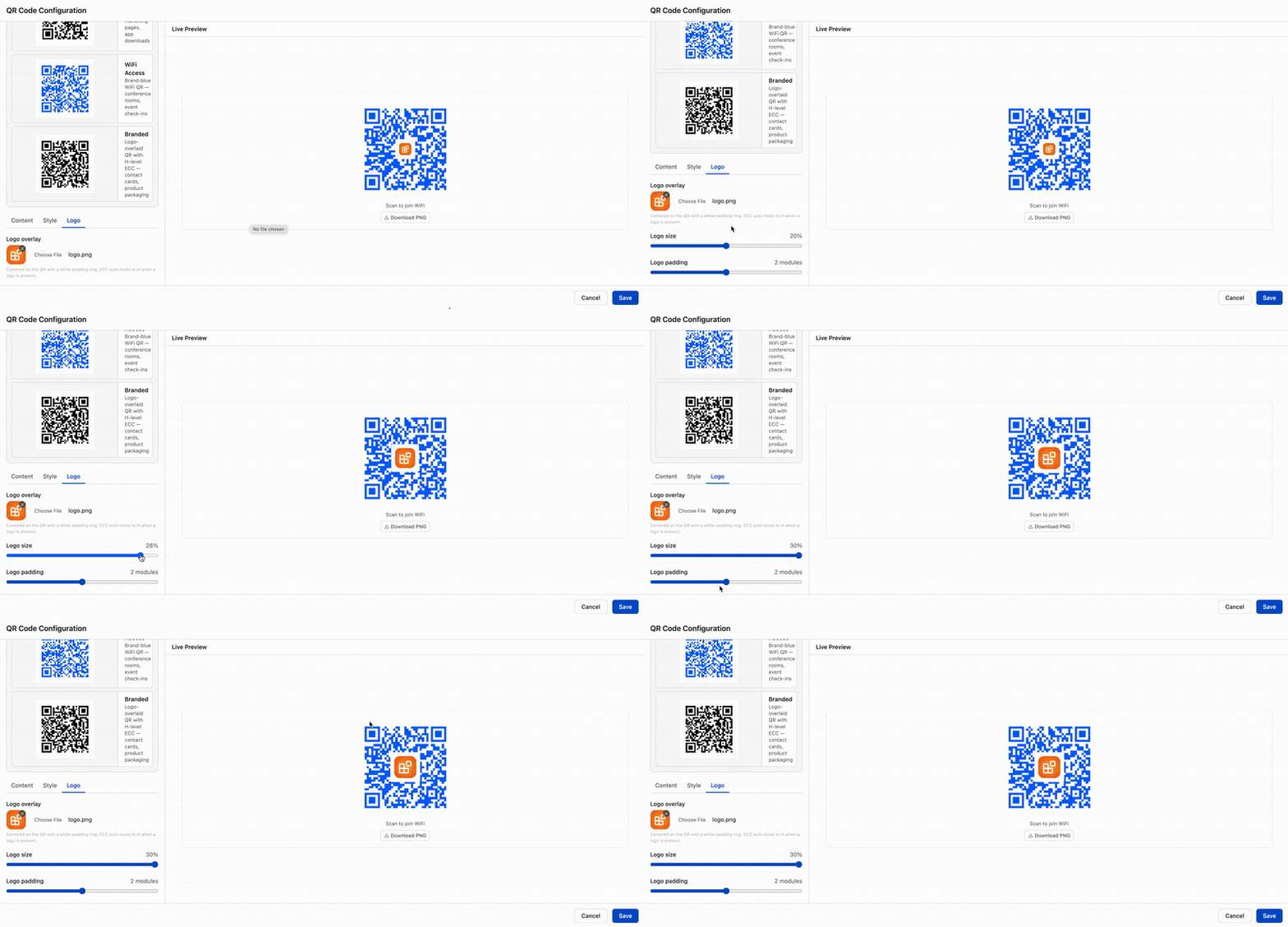
Add a QR code to an event page for registration, a conference room page for WiFi access, or a team page for contact details. It updates instantly when you change the config.
5. How to Collect Feedback Without Adding Another Tool
Internal surveys, event RSVPs, feedback forms — teams build these in Google Forms, Typeform, or SurveyMonkey, then embed or link from Confluence. That means data lives in a separate tool, responses are disconnected from your content, and you're managing yet another subscription.
The problem: Every external survey tool creates a data silo. Responses live outside Confluence, and there's no easy way to tie feedback back to the page it references.
The fix: The Form macro lets you collect survey responses directly on any Confluence page — stored in Confluence, viewable from a dedicated admin dashboard.
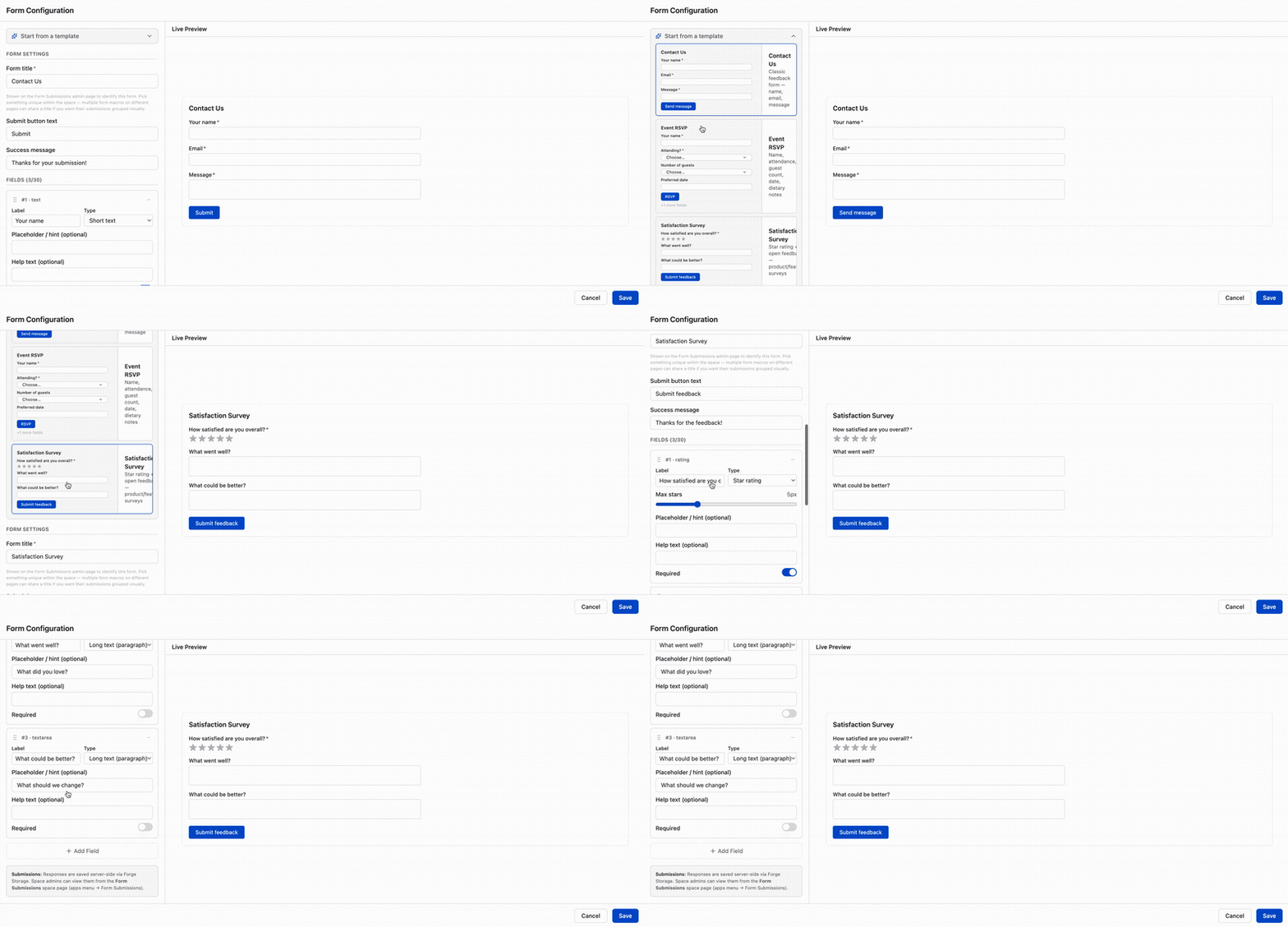
It supports 7 field types:
- Short text, Long text, Dropdown, Checkboxes, Star rating, Email, Date picker
- Submissions are stored server-side in Forge Storage
- Space admins can view, export CSV, and delete submissions
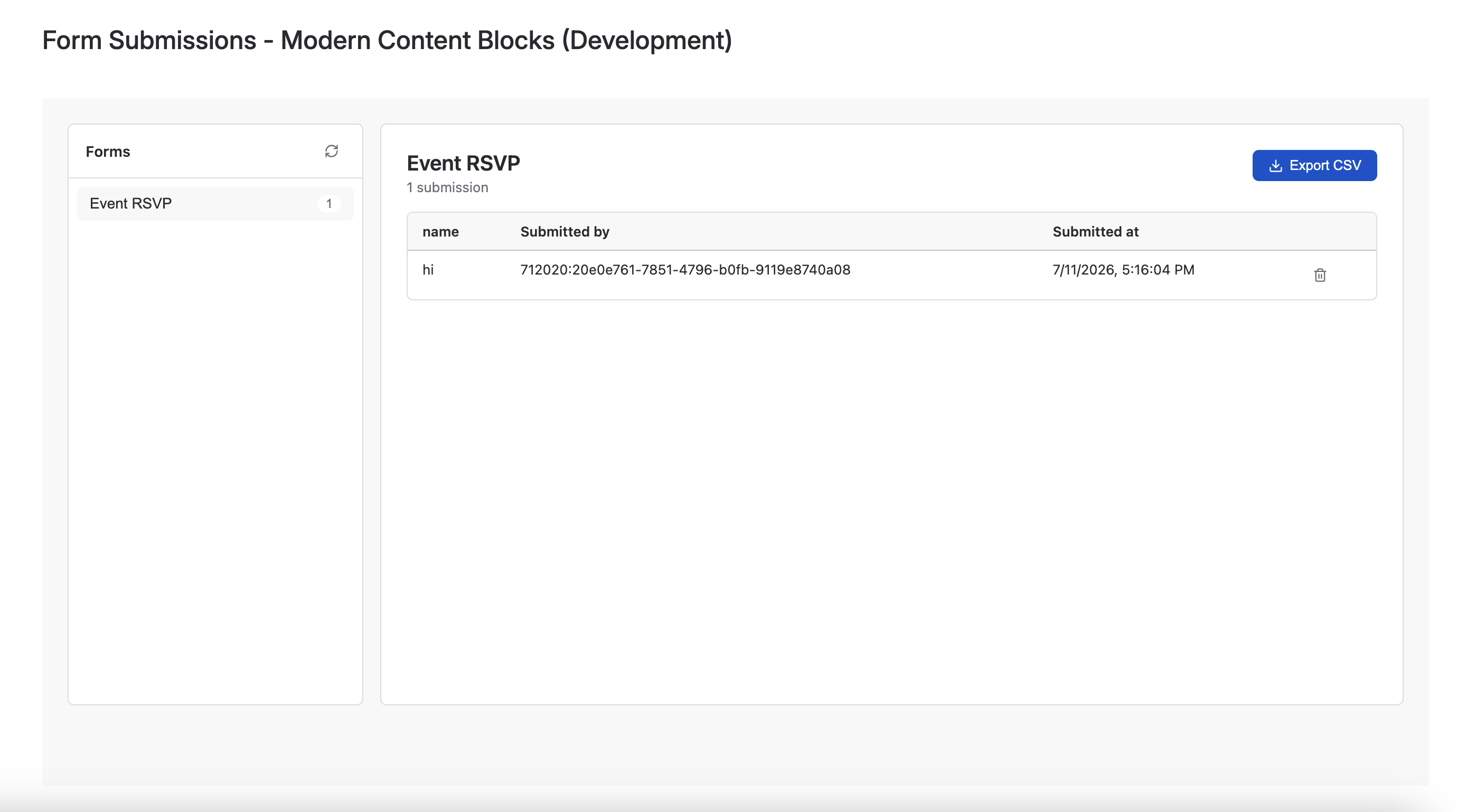
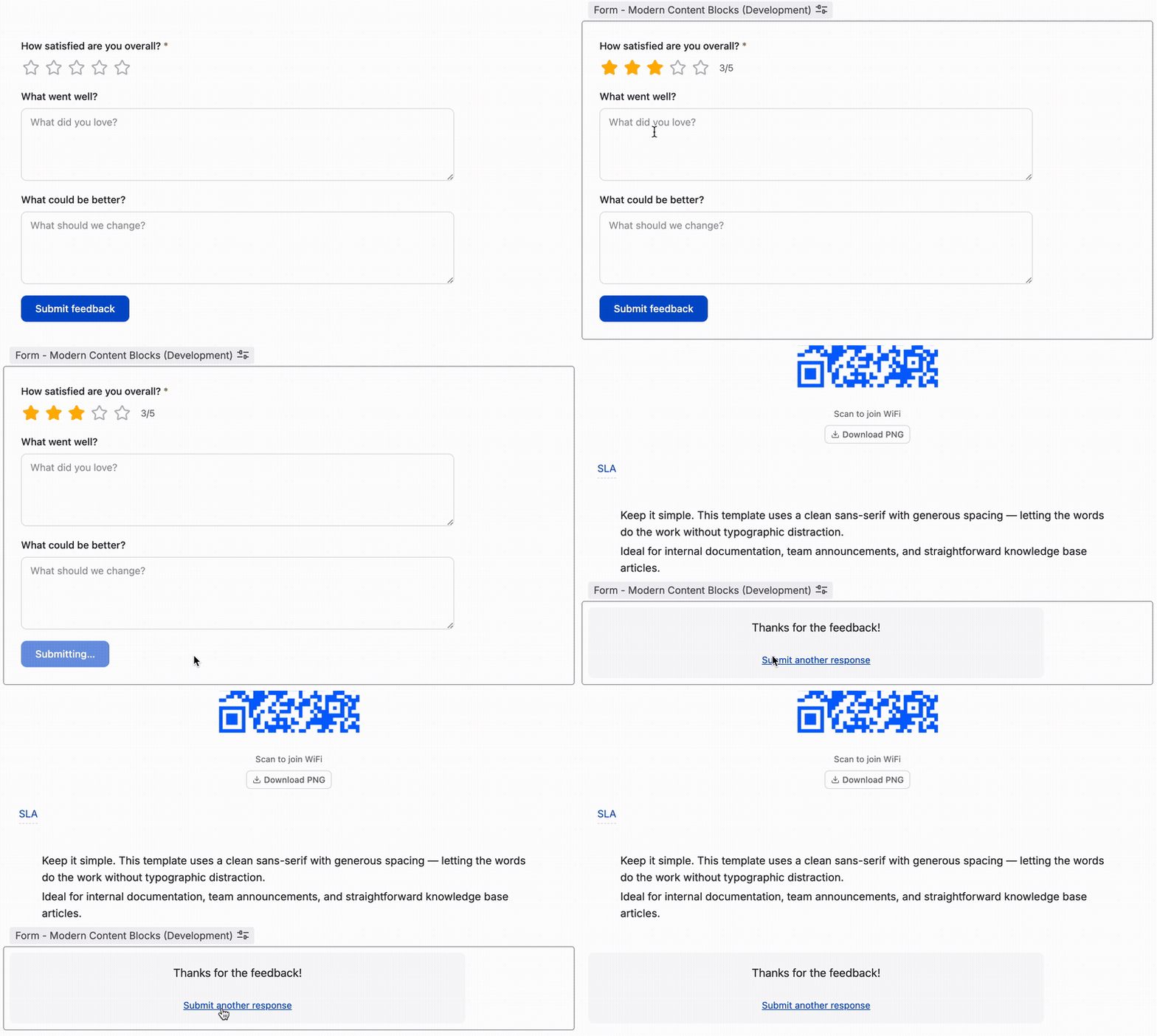
Use it for team satisfaction surveys, event RSVPs, contact forms, or feedback collection — all without adding a third-party tool.
6. How to Add Terms and Glossary Definitions Inline
Documentation pages often need to define terms — acronyms, technical terms, industry jargon. The standard approach is a glossary section at the bottom of the page, which forces readers to scroll back and forth.
The problem: Inline tooltips for terms don't exist in Confluence natively. Teams either define terms in parentheses (cluttering the text) or link to an external glossary page.
The fix: The Annotation macro is an inline macro that renders within your prose — no paragraph break. Hover over the term to reveal its definition in a tooltip.
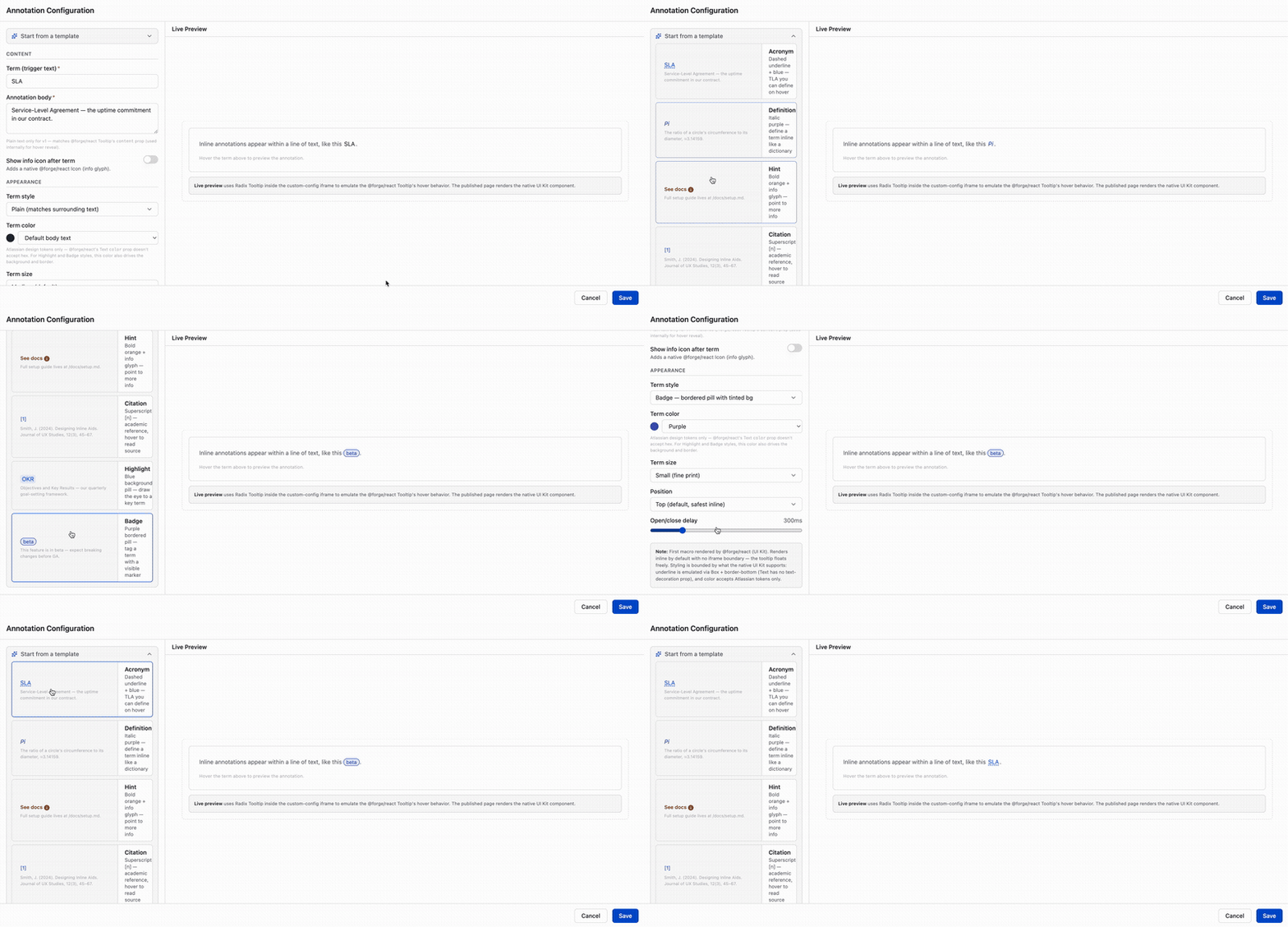
Features:
- 9 visual styles: Plain, Bold, Italic, Underline (solid/dashed), Citation, Highlight, Badge, Strikethrough
- 8 color tokens that adapt to light/dark mode
- Configurable position, delay, and info icon
- 6 presets: Acronym, Definition, Hint, Citation, Highlight, Badge
Define an acronym once with Annotation, and readers see the definition on hover — no glossary page required.
These 6 macros are part of a larger system
Content Formatting Macros & Page Builder for Confluence includes 23 macros total — 16 in the Standard edition and 7 premium macros — plus a global Theme Editor that controls colors, fonts, spacing, and shadows across every macro at once.
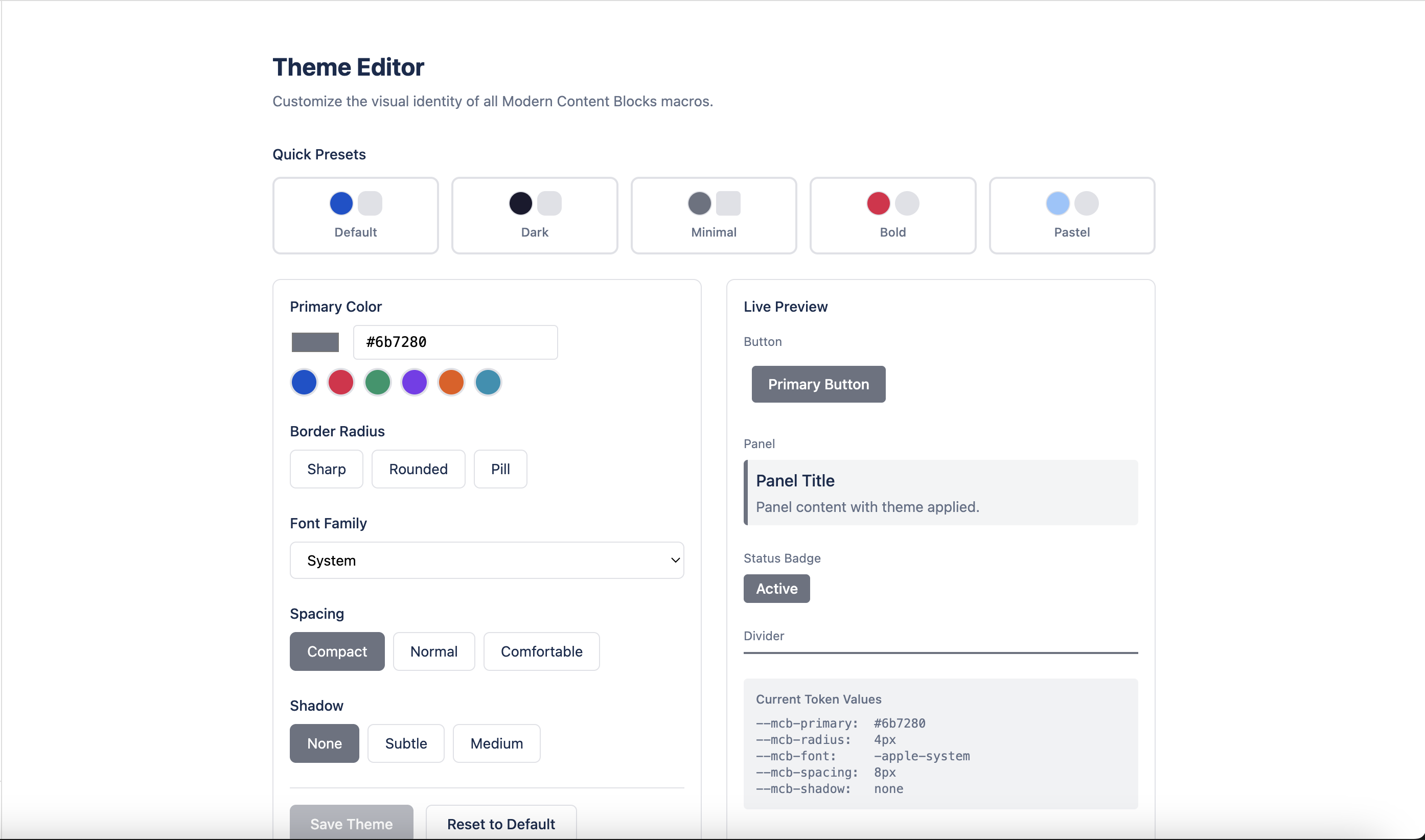
Five theme presets (Default, Dark, Minimal, Bold, Pastel) let you switch your entire page's look in one click. Here's how it compares to the popular formatting apps on the Marketplace:
| Feature | Content Formatting Macros & Page Builder | AURA | Optics | Mosaic | Refined |
|---|---|---|---|---|---|
| Hero Section | ✅ Full hero with CTAs | ✅ Full-width | Banner only | Banner only | Banner only |
| Pricing Table | ✅ Multi-tier | Basic | ❌ | ❌ | ❌ |
| FAQ with Search | ✅ Search + categories | Expand only | ❌ | ❌ | ❌ |
| Countdown Timer | ✅ Animated | ✅ | ✅ | ❌ | ✅ |
| Numbered Headings | ✅ (9 presets) | ✅ | ❌ | ✅ | ✅ |
| Image Gallery | ✅ (masonry + lightbox) | ❌ | Image Slider | ❌ | ❌ |
| QR Code | ✅ | ❌ | ❌ | ❌ | ❌ |
| Annotation (inline tooltips) | ✅ | ❌ | ❌ | ❌ | ❌ |
| Article Mode (bilingual) | ✅ | ❌ | ❌ | ❌ | ❌ |
| Form / Survey | ✅ | ❌ | ❌ | ❌ | ❌ |
| Card Grid (carousel) | ✅ | Cards only | Cards only | ❌ | ❌ |
| Hover Animations | ✅ (5 types) | ❌ | ❌ | ❌ | ❌ |
| Global Theme Presets | ✅ (5 presets) | Color Mgmt | Style Guide | ❌ | ❌ |
| Auto Dark/Light Mode | ✅ | ✅ (toggle) | ❌ | ❌ | ❌ |
| Macro Presets | ✅ (76+ presets) | ✅ | ✅ | ✅ | ❌ |
QR Code, Annotation, Article Mode, and Form/Survey are features no competitor offers at all. The rest — animations, global theming, dark mode detection, page-builder macros — fill gaps that the 58 user reviews we analyzed consistently asked for.
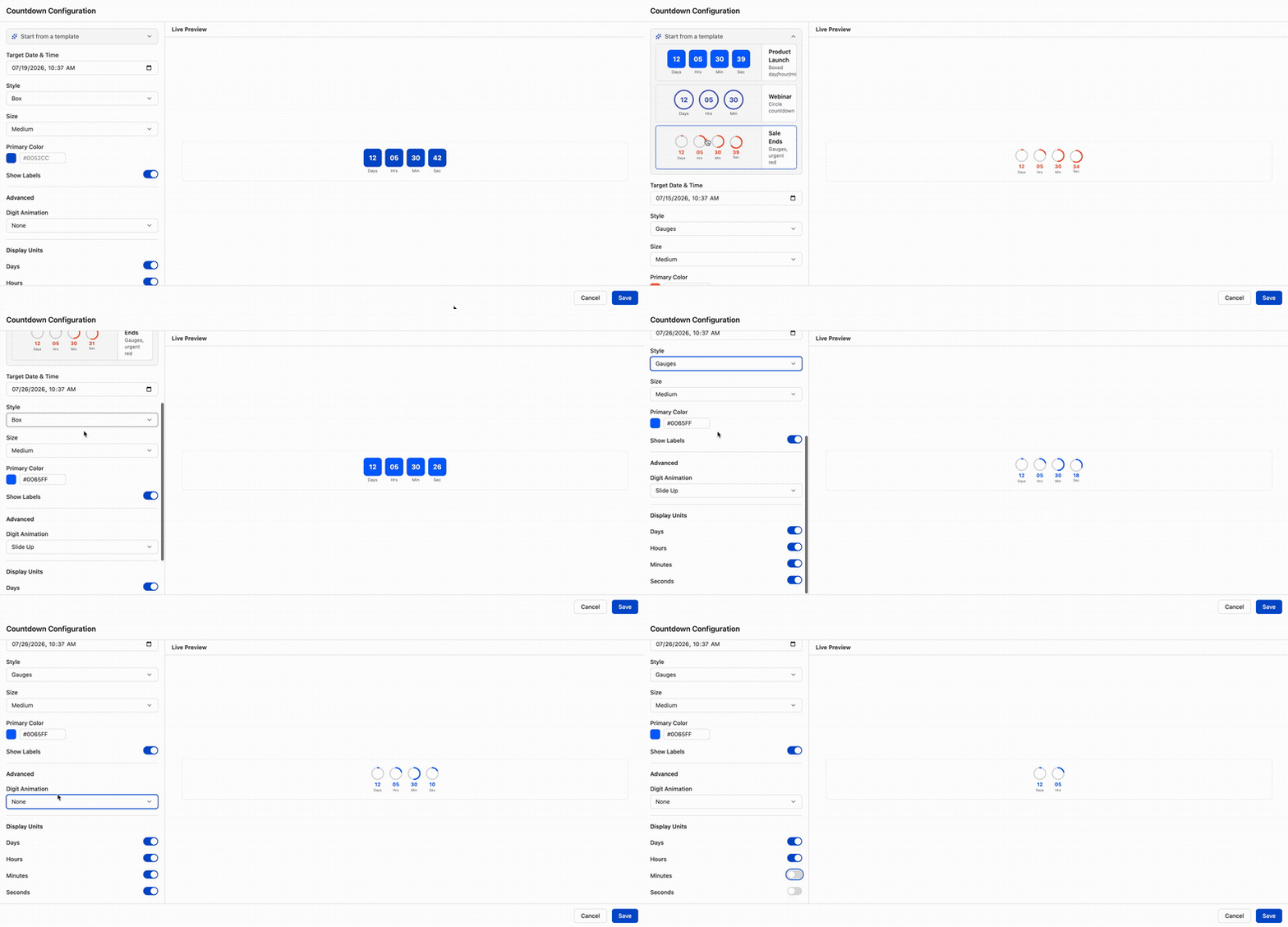
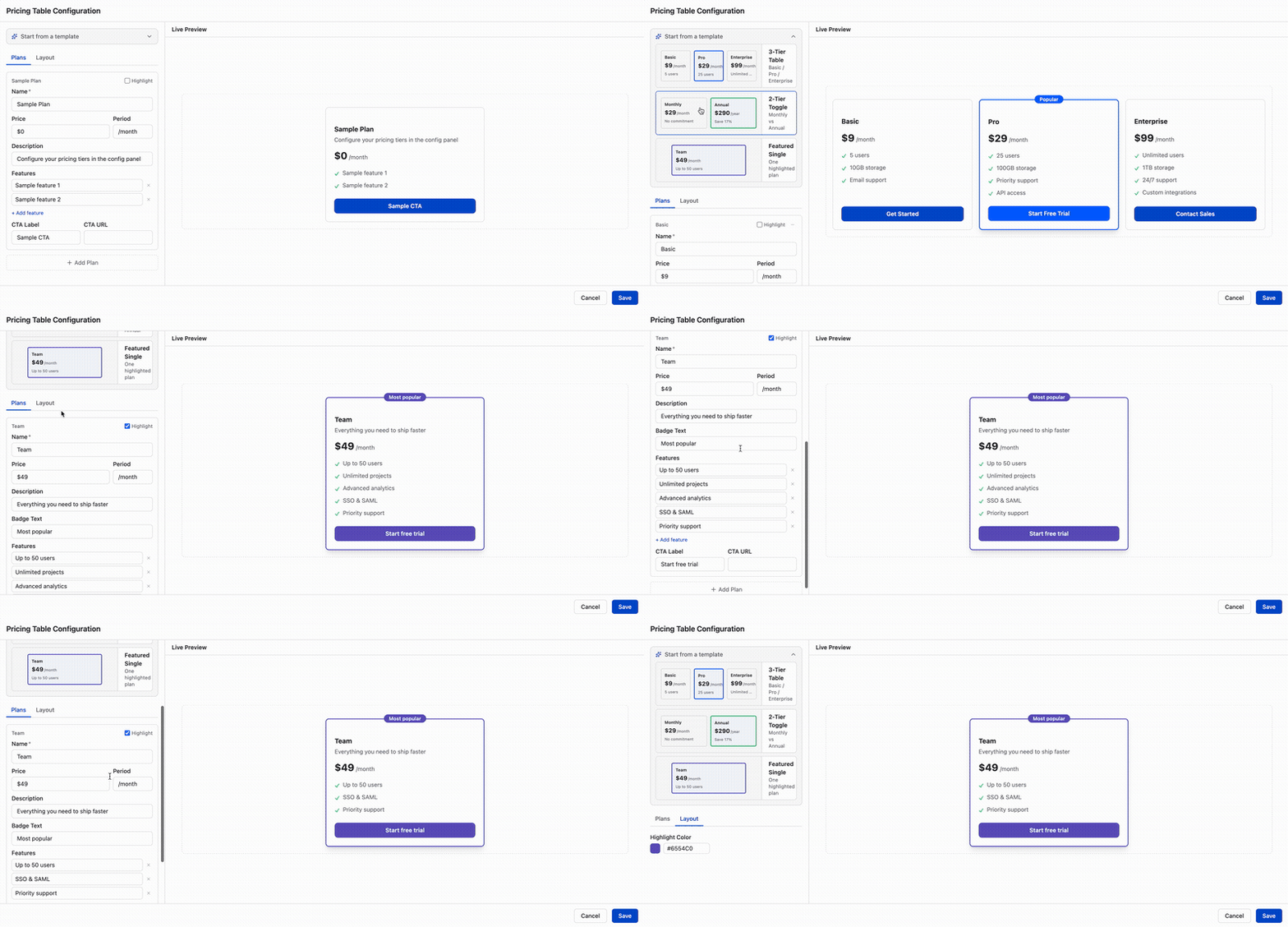
Every macro opens with a template — 76+ presets across all 23 macros — so you never start from a blank config panel. Live preview updates in real time as you adjust settings.
FAQ
Can I build a landing page in Confluence?
Yes. With Content Formatting Macros & Page Builder for Confluence you can assemble a full landing page inside Confluence: a Hero Section for the header, an Article macro for long-form content, styled Tables, Card Grids, FAQ sections, countdown timers, QR codes, and a Form for lead capture — plus a global Theme Editor to keep colors and fonts consistent. No HTML or CSS required.
Do I need to know HTML or CSS to use these macros?
No. Every macro is configured through a visual panel with templates and live preview. Colors, fonts, spacing, and shadows are controlled through presets and theme tokens, not code.
Can I use these macros on existing pages?
Yes. Any macro can be inserted into an existing page — edit the page, type / and search for the macro name, configure it, and save. The macros coexist with native Confluence content and other apps.
Do the macros adapt to dark mode?
Yes. The macros use Atlassian Design Tokens, so colors adapt automatically when Confluence switches between light and dark mode. The Theme Editor also ships 5 presets (Default, Dark, Minimal, Bold, Pastel) you can apply page-wide in one click.
Related guides
- Confluence QR Code Apps Compared
- How to Create FAQ Pages in Confluence
- Confluence Markdown Editor Comparison